
How to Bypass Insightful (Workpuls) with Lumous: October 2026 Test
We ran Lumous with Insightful, formerly Workpuls, tracking in the background for almost five and a half hours. We then reviewed the admin dashboard to check the tracked time, utilization, mouse and keyboard activity, screenshots, app usage, and irregular behavior alerts.
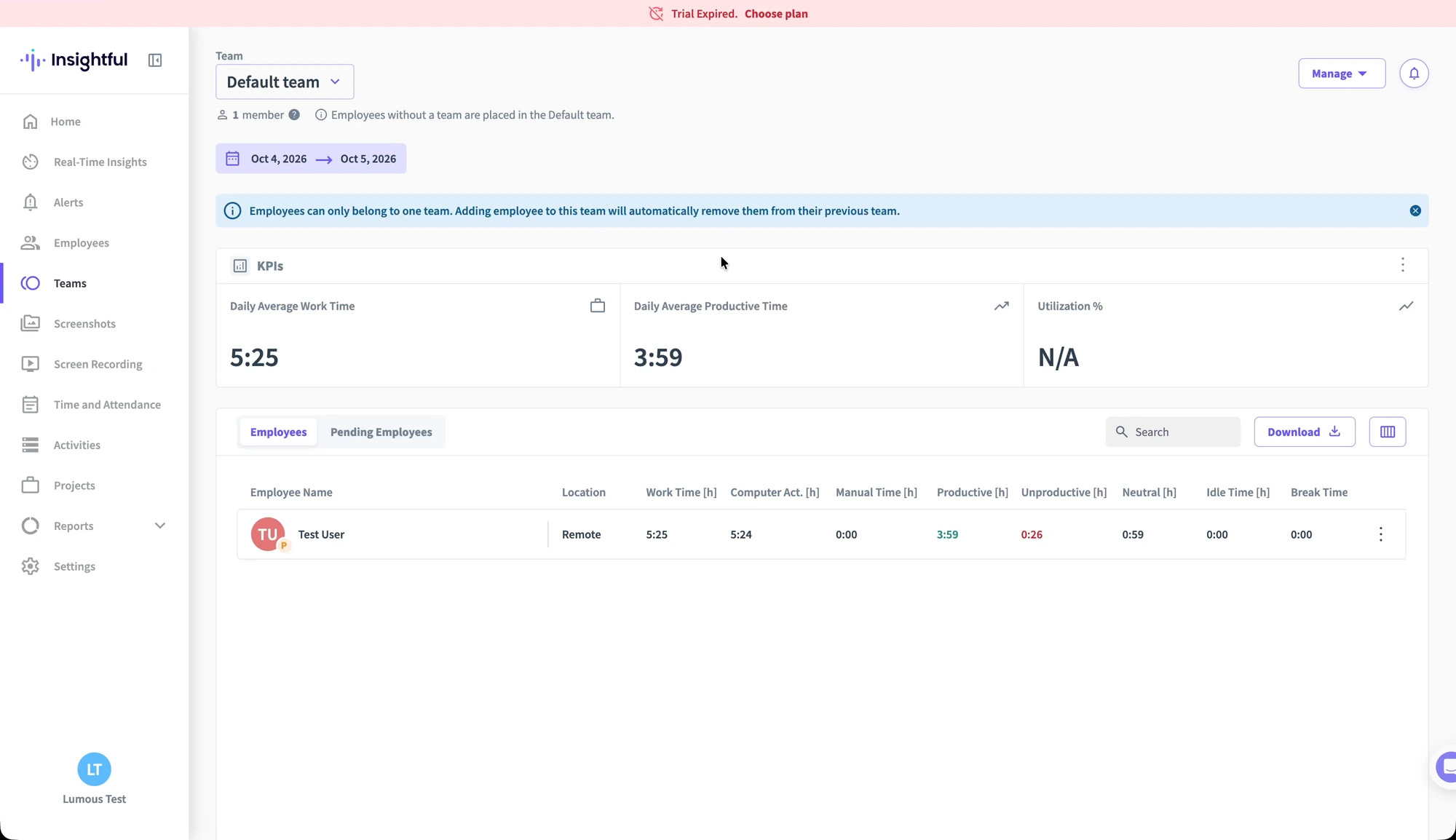
Insightful recorded 5 hours and 25 minutes of work time, about 74% average utilization, and zero irregular behavior alerts.
The Lumous Settings We Used
We used Lumous 4.1.0 in Basic Mode, with the activity intensity set to Medium. Mouse movement, clicks, scrolling, tab switching, app switching, keyboard activity, and micro-breaks were all enabled.
| Setting | What we used |
|---|---|
| Safe Click Zones | Two zones, one on each side of the screen, to control where clicks can land. |
| Scrolling | Vertical and horizontal. |
| Tab switching | Browsers only, so tab-switching shortcuts stay within supported browsers. |
| App switching | Enabled; Lumous rotates through open applications that are not minimized. |
| Keyboard activity | Silent Keys. |
| Micro-breaks | 1–3 breaks per hour, lasting 30–120 seconds each. |
Basic Mode applies one intensity level across the features. Advanced Mode lets you adjust them individually. We kept Medium for the recording, with Word, Excel, Visual Studio Code, and Chrome open on the desktop.
How We Recorded and Reviewed the Time
We recorded the time using a regular employee account called Test User. We then signed in with a separate admin account, Lumous Test, to review what Insightful recorded. The employee’s name appears in the filters and screenshots below; the admin account is the one used to view the reports and alert settings.
Insightful recorded 5 hours and 25 minutes of work time, including 3 hours and 59 minutes classified as productive. We selected October 4–5, the dates of our test, to include the full recording in the reports.
The Applications and Websites Insightful Recorded
The Apps and Websites report matches the same activity. It includes Excel, Visual Studio Code, and Word, which Lumous switches between in the recording, alongside the Chrome tabs: Google Drive, Wikipedia, BBC, Google Docs, Wikivoyage, Google Calendar, Stack Overflow, Gemini, and Lumous (our website). Insightful records time against each app or website as Lumous moves through them.
We had our website open in Chrome along with the other tabs, which is why it appears here. The Lumous desktop app runs under the name Reminders; it did not appear in this application report.
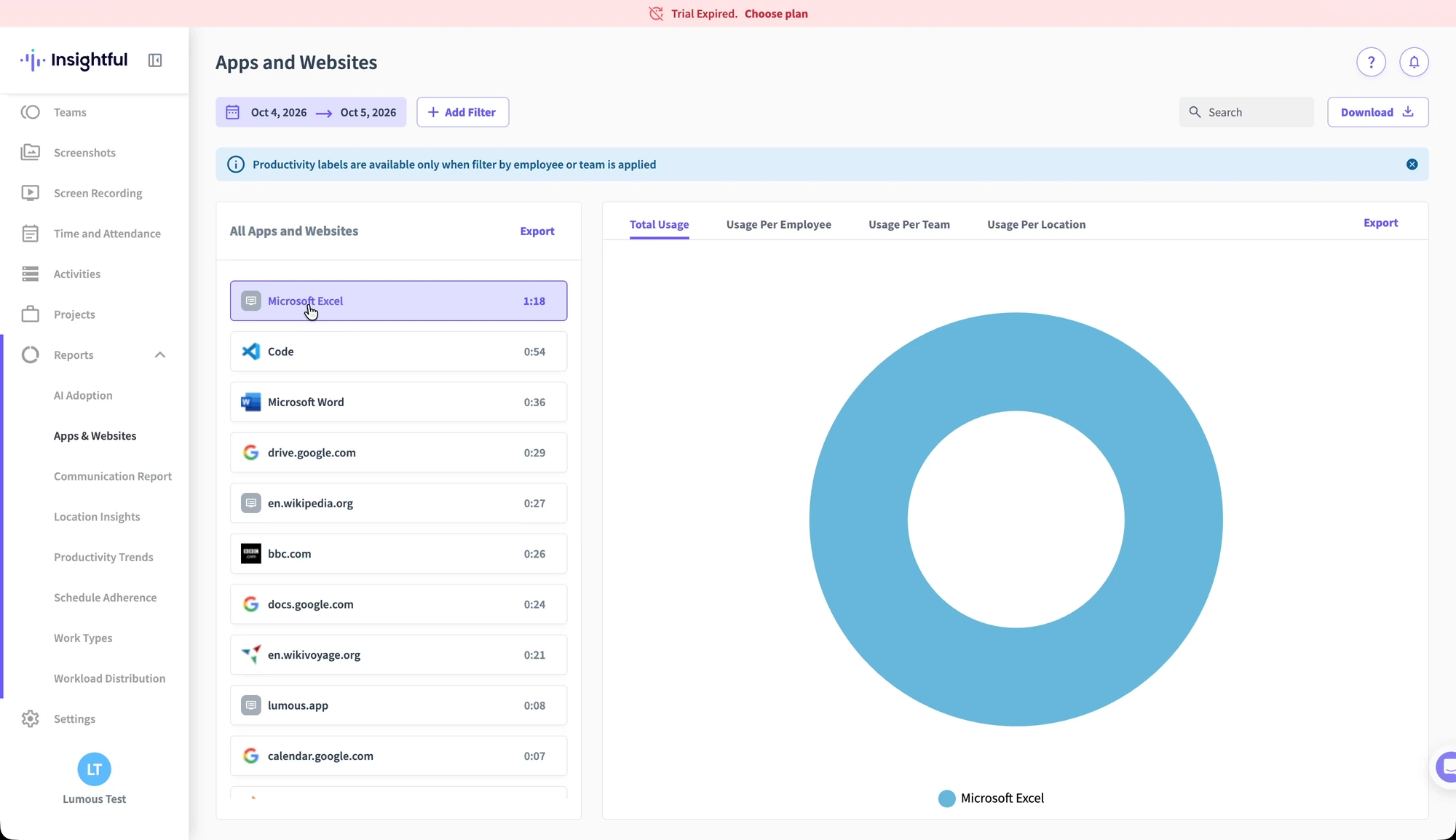
The report also includes Workpuls, the name used by the Insightful desktop app, which we opened to start and stop the timer. That entry refers to the tracker itself.
Screenshots, Mouse Activity, and Keyboard Activity
Utilization was about 74% across the full test. We then opened the employee’s activity timeline to see how the mouse and keyboard activity varied while Lumous was running. Each activity block includes an engagement percentage and a breakdown of the input.
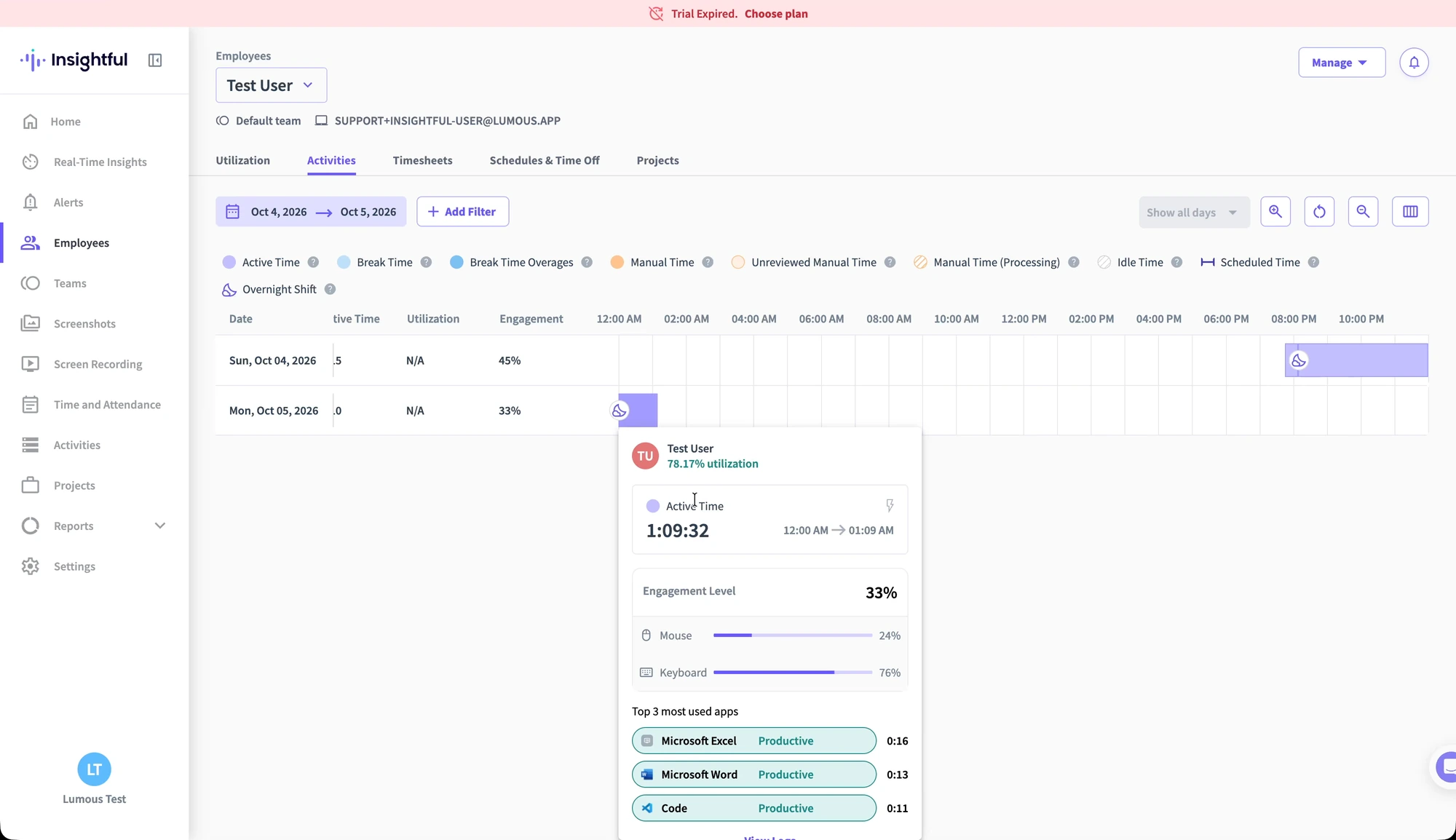
For example, the block shown above has 33% engagement, with 24% mouse and 76% keyboard input. Another block shows 44% engagement, split 38% mouse and 62% keyboard. These are examples from the recording, showing how the input mix changes as Lumous runs.
Utilization and engagement describe different things. Utilization relates to productive activity under the organization’s settings; engagement measures mouse and keyboard interaction during active time. Insightful explains its utilization calculation and engagement measurement in more detail.
The Screenshots Insightful Captured
As Lumous switches between the open apps and browser tabs, Insightful captures those changes in its screenshots. We can see Visual Studio Code, Google Docs, Google Drive, Excel, Word, and browser pages at different points. When the same app appears again, Lumous may have scrolled to a different part of the page or document.
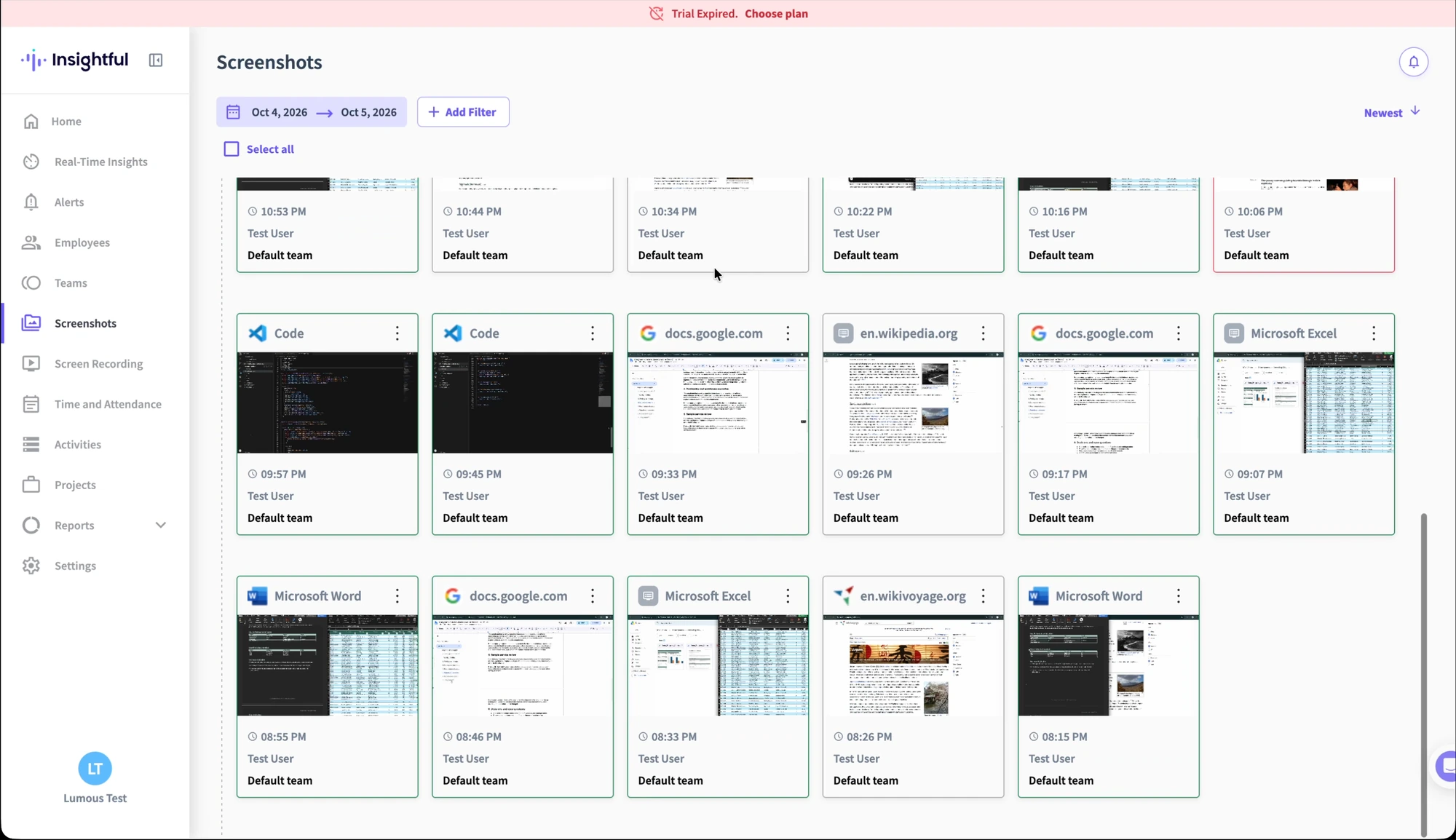
You can match the time on each screenshot to the clock in the timelapse and compare what Lumous was doing on the desktop with what Insightful captured throughout the recording.
Zero Irregular Behavior Alerts
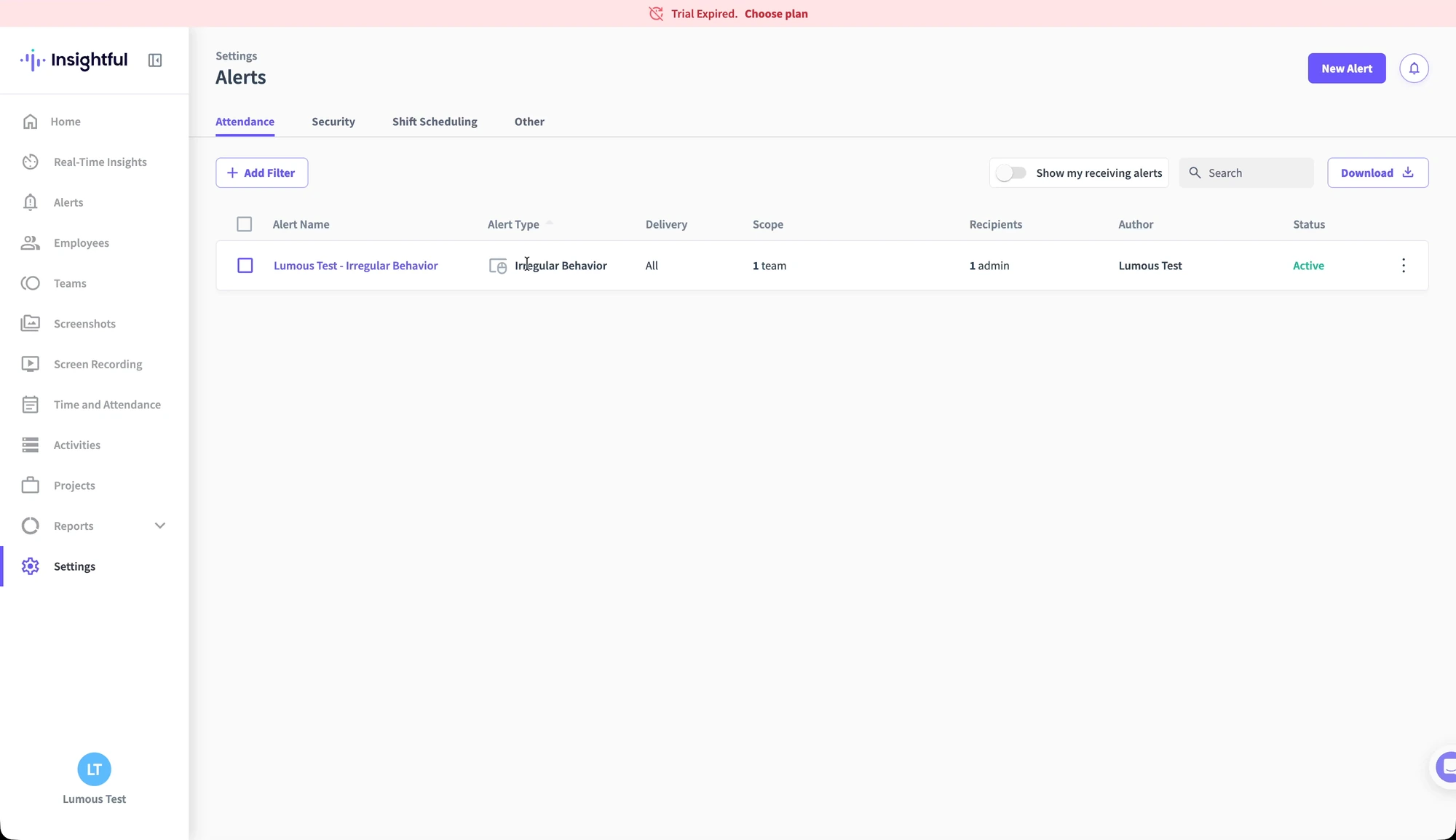
Before checking the results, we verified that the Irregular Behavior alert was enabled. In the screenshot below, Lumous Test – Irregular behavior is the name of the alert rule for our organization, and its status is Active.
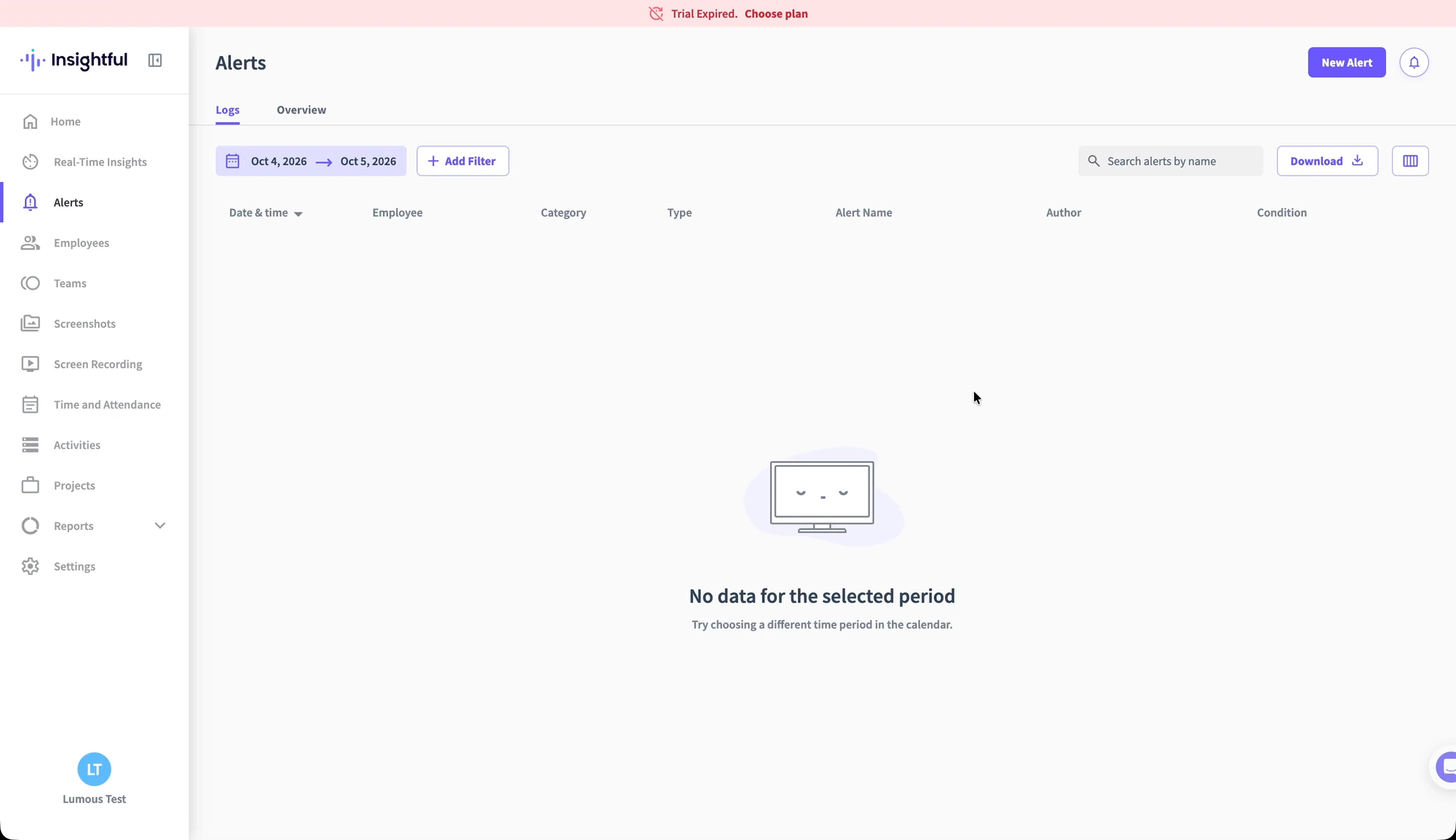
The alert logs for October 4–5 showed “No data for the selected period.” We also selected the employee account directly and expanded the date range to the month. There were still no entries: zero irregular behavior alerts.
The Result
Insightful recorded 5 hours and 25 minutes of work time and about 74% utilization, alongside changing screenshots, app usage, and mouse and keyboard activity. The irregular behavior alert was enabled, with zero alerts recorded.
The Insightful guide covers its tracking features, screenshots, and admin settings in more detail.
Watch the Recording
The video shows the Lumous settings, the admin review, and the recorded desktop timelapse. The original time and date remain visible in the top-right corner so you can compare the apps, pages, and screenshot times with the dashboard. The chapters below link to each part.
Video Chapters
- 0:45 — Lumous app and settings
- 3:29 — Insightful admin dashboard
- 4:14 — Employee overview and work time
- 4:55 — Utilization, engagement, mouse, and keyboard activity
- 5:46 — Recorded screenshots
- 7:33 — Apps and websites
- 8:44 — Irregular behavior alert settings
- 9:13 — Alert logs and employee filter
- 9:47 — Recorded session timelapse
Try Lumous with Insightful
The Lumous app overview explains the controls in more detail. For installation and permissions, follow the Windows or macOS setup guide.
Available for Windows and macOS. Every feature is included for $5/month. Contact us if you would like help with your setup.