
Lumous v4.1.0: What's New and How to Use It
Lumous v4.1.0 gives you more control over where tabs switch and how often automation takes a break. It also improves scrolling, reduces disruptive keyboard navigation, and makes settings and license recovery easier to use. Here's what changed, why we added it, and where to find each option in Reminders, the Lumous desktop app.
Browser-Only Tab Switching: Help Prevent Accidental Edits
A tab-switching shortcut can behave differently depending on the active app. In a document editor, it may insert tabs or change content. We introduced Browsers only to keep tab-switching shortcuts out of other apps: Lumous sends the shortcut only when a recognized browser is active.
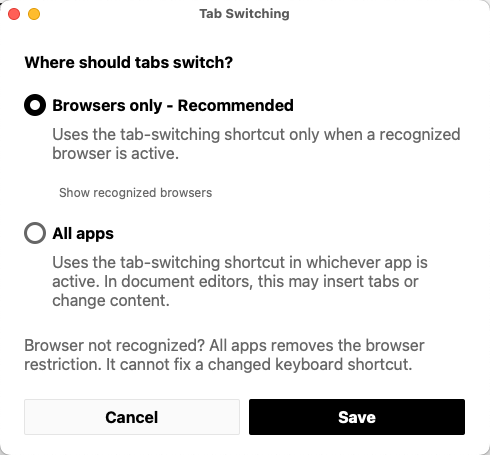
Choose Where Tabs Switch
- Turn on Tab Switching in Automation Settings.
- Click the Switch in: Browsers only or Switch in: All apps label beneath it to open the Tab Switching settings.
- Choose Browsers only - Recommended to restrict this activity to recognized browsers.
- Select Show recognized browsers to see the list for your computer, then click Save to apply your choice.
We retained All apps for browsers outside the supported list and for people who want the previous behavior. It uses the tab-switching shortcut in whichever app is active. Choose it in the same dialog and click Save. It removes the browser restriction, but it cannot fix a browser that uses a different tab-switching shortcut.
Upgrading from an older version? Existing saved settings retain All apps. Select Browsers only to use the new restriction. Fresh settings use Browsers only by default.
This choice controls Tab Switching. Mouse Clicks and Character Typing have their own settings and can still interact with the active page or document.
Supported Browsers
In v4.1.0, Browsers only recognizes the following browsers. You can also view this list in the app by selecting Show recognized browsers in Tab Switching settings.
- Windows and macOS: Google Chrome, Microsoft Edge, Firefox, Brave, Opera / Opera GX, Vivaldi, Arc, and Chromium.
- macOS only: Safari.
Don't see your browser? Send us its name, official website, and whether you use Windows or macOS so we can review adding it to the recognized list.
Micro-Breaks: Choose How Often Automation Pauses
Lumous already included randomly scheduled micro-breaks. In v4.1.0, you can turn them on or off and choose their frequency separately in Advanced Mode, giving you more control over the rhythm of your session. Each break lasts a randomly selected 30–120 seconds.
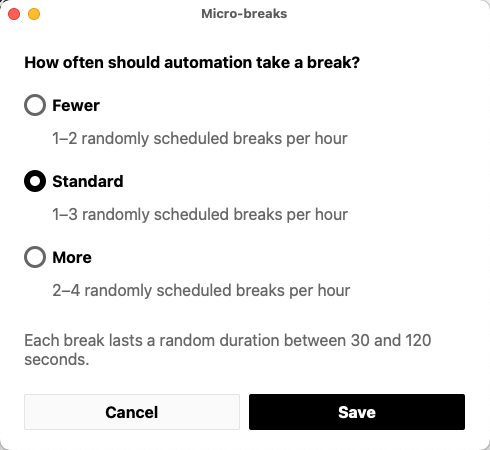
- Turn on Micro-breaks in Automation Settings.
- Enable Advanced Mode to choose a separate break frequency.
- Click the Breaks: summary beneath Micro-breaks, select Fewer, Standard, or More, then click Save. You can also use the Frequency slider.
| Frequency | Randomly scheduled breaks per hour |
|---|---|
| Fewer | 1–2 |
| Standard | 1–3 |
| More | 2–4 |
Breaks happen at varying times, rather than at a fixed interval. Fewer means fewer breaks, not shorter ones: all three choices use the same random 30–120 second duration. Turn the Micro-breaks toggle off if you don't want these scheduled breaks.
In Basic Mode, break frequency follows Activity Level: Low uses 2–4 breaks per hour, Med uses 1–3, and High uses 1–2. Advanced Mode follows that preset until you choose a separate frequency. Once chosen, your Advanced frequency is remembered when you switch back to Basic Mode and return later.
Smoother Scrolling and More Consistent Movement
This release improves vertical scrolling pace and corrects scroll distances so movements are more consistent. On macOS, it also fixes scrolling being affected by modifier keys left over from other actions, such as a tab or app switch.
These improvements apply automatically. To choose how scrolling behaves, turn on Scrolling, or click its Scrolling direction: label if it's already enabled. Choose a direction and click Save:
- Vertical - Scroll up and down through pages and documents.
- Horizontal - Scroll left and right through wide content, such as spreadsheets.
- Vertical + Horizontal - Vary between both directions, using one axis at a time.
Direction choices were introduced in v4.0.0. In v4.1.0, they use the clearer settings dialog, alongside the scrolling fixes. Use the Intensity slider in Advanced Mode to adjust scrolling activity.
Silent Keys: Fewer Disruptive Page Jumps
Silent Keys registers keyboard activity without typing visible characters. We've refined its key selection to reduce large page jumps and unexpected navigation in spreadsheets.
To choose your keyboard style, turn on Keyboard Activity, or click Keyboard style: beneath it if it's already enabled. Select Silent Keys and click Save. Character Typing remains available when you want visible random characters; it can change the contents of a selected text field or document.
Clearer Settings, with Save and Cancel
Choice dialogs now explain what each option does and use consistent Save and Cancel controls. This covers tab switching, break frequency, scrolling direction, keyboard style, mouse click mode, and safe-zone choices. You can review an option before applying it, or select Cancel to keep your current choice.
Open these dialogs from the setting labels beneath the relevant activity. Some also appear when you turn an activity on. The Save button applies the choice in that dialog; the main activity toggles and sliders continue to apply directly.
Clearer License Messages and Connection Recovery
v4.1.0 gives clearer guidance when a license key needs attention or verification is temporarily unavailable. Messages distinguish issues such as an incomplete key, a key linked to another device, and a connection problem, with actions suited to the issue.
- Connection problem: check your internet connection and select Check again when offered. Retryable screens also check again automatically.
- Key linked to another device: select Manage license and follow the device-move steps if eligible, then return to the app and select Check again.
- Key format problem: copy the full key from your license email and use the option to enter another key.
Hotkeys also recover more reliably after license reactivation. Once access is restored, use the normal shortcuts shown in the app. For help with billing or moving a license, see our license management guide.
Update to v4.1.0
Fully quit Reminders before running the installer, including the background app if you've closed its window. Download the v4.1.0 installer for your computer:
Follow the update guide to install it. Your settings carry over. Then review the Tab Switching choice and Micro-breaks settings to make the new controls fit your setup.
For the complete set of desktop controls, see the Lumous app overview.