
Lumous App Overview: Features, Setup & Desktop Demo
Watch the Full Lumous App Overview
Lumous is designed to make customizable computer activity simple to configure and easy to control. In this full desktop app walkthrough, you can see the activation process, setup flow, activity controls, safe click zones, keyboard modes, global shortcuts, and starting your first session.
The demo is an under-five-minute walkthrough of the desktop app from first launch to starting and ending a session. Lumous is installed as Reminders on your computer. You can view pricing and start your free trial or download Lumous when you are ready to try it yourself.
Activate Your License
When Lumous first opens, enter the license key emailed to you after starting a trial or subscribing through our website, then click Activate.
After activation, Lumous brings you to the main dashboard. Your license and preferences are saved automatically so future launches can sign you in and restore your setup.
Use Manage License in the dashboard to view your license, devices, and subscription options. The license management guide explains those controls.
Configure Your Activity Settings
The dashboard lets you choose exactly what Lumous can do during a session:
- Mouse Movement - Natural cursor movement across the screen.
- Mouse Clicks - Occasional clicks with additional safety controls.
- Scrolling - Choose vertical, horizontal, or both directions, with activity based on the selected intensity.
- Tab Switching - Use Browsers only for supported browsers, or choose All apps for the broader shortcut behavior.
- Application Switching - Rotating between open applications.
- Keyboard Activity - Keyboard activity using the selected typing mode.
- Micro-breaks - Occasional pauses of 30–120 seconds, with a separate on/off control and adjustable frequency in Advanced Mode.
Basic Mode keeps setup simple with one Activity Level slider for Low, Medium, or High. Turn Advanced Mode off to use this view. Individual activity types can still be enabled or disabled.
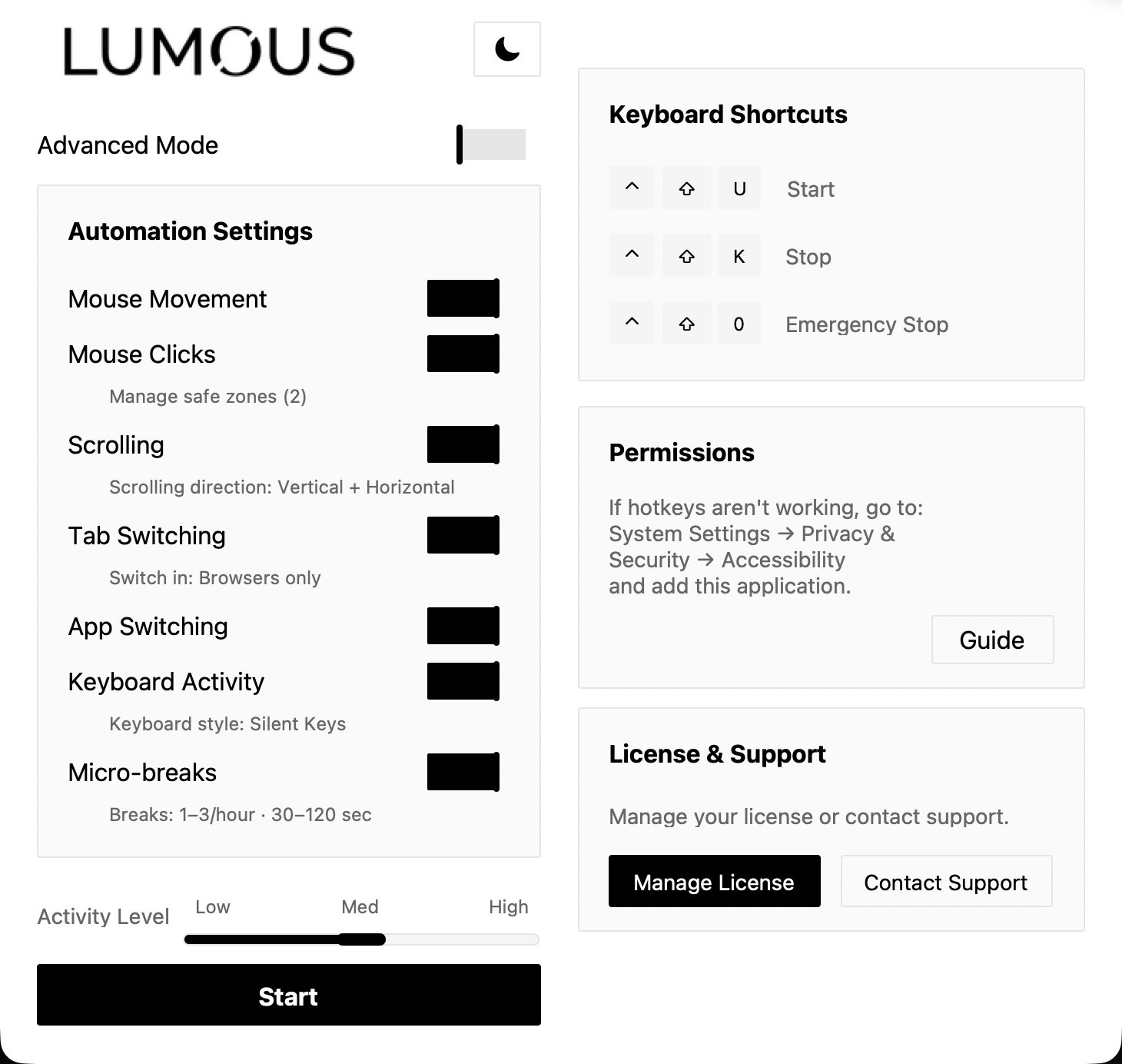
Advanced Mode: Adjust Each Activity Separately
Turn Advanced Mode on to reveal separate controls for mouse activity, click frequency, scroll intensity, tab switching, app switching, and keyboard words per minute. You can also choose the micro-break frequency independently. This lets you adjust one type of activity without moving every setting together.
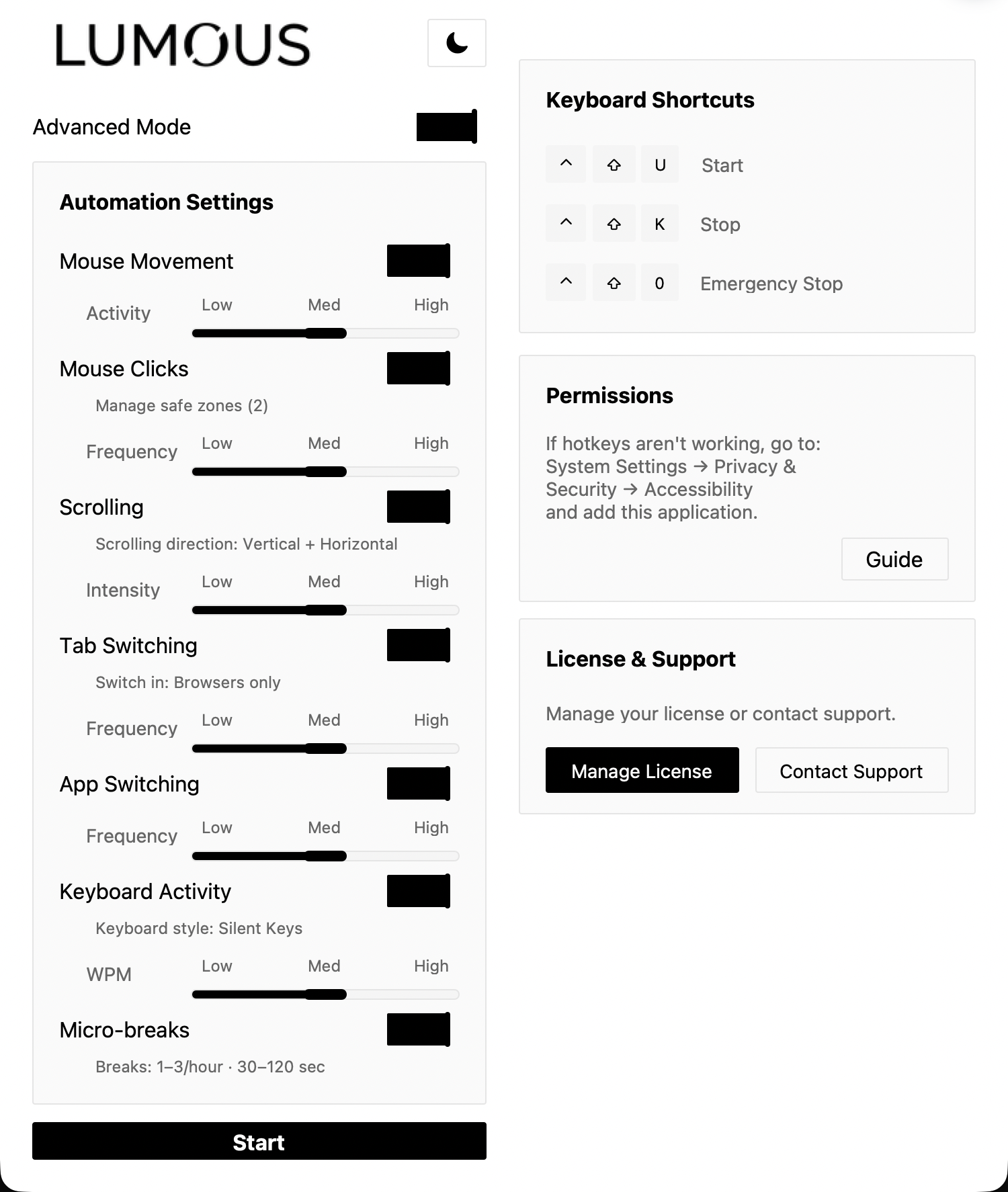
Click the setting label beneath an activity to open its options: Scrolling direction selects the axes, Switch in selects where tab shortcuts apply, Keyboard style selects the input mode, and Breaks opens the micro-break settings. For the available choices and upgrade behavior, see the v4.1.0 features guide.
Safe Click Zones and Keyboard Activity
When Mouse Movement is enabled, Mouse Clicks can be restricted to Safe Click Zones. You can use the default zones, which avoid screen edges and corners, or create custom zones by dragging over the areas where clicks are allowed.
If Mouse Movement is turned off, you can choose Click In-Place instead. This allows clicks only at the cursor's current position when the Lumous session begins.
Keyboard Activity includes two modes: Silent Keys, which registers keyboard activity without visible characters, and Character Typing, which enters visible random characters on screen.
Global Shortcuts and Saved Preferences
Once your settings are configured, you can control Lumous while it is minimized using global shortcuts.
| Shortcut | Action |
|---|---|
| Ctrl + Shift + U | Start session |
| Ctrl + Shift + K | Stop session |
| Ctrl + Shift + 0 | Emergency stop |
Lumous saves your settings, theme, safe zones, and activity mode, making it easy to reuse the same setup the next time you launch the app.
Available for Windows and macOS
Lumous is available for Windows and macOS. On macOS, Lumous requires Accessibility and Input Monitoring permissions so activity controls and hotkeys work properly; the in-app onboarding flow opens the correct settings and guides you through the required steps.
Windows does not require the same privacy-permission setup flow; after installation and activation, you can go straight to configuring your preferences and starting a session. For platform-specific details, read the macOS setup guide or the Windows setup guide.
Start Using Lumous Today
Lumous is available for Windows and macOS with one complete plan at $5 month-to-month or $48 per year ($4 per month). Start with a 7-day free trial; every feature is included.
Questions? Contact us.