
How to Update Lumous
Before You Update
If Reminders is open on your computer, close it before you begin the update. This lets the installer replace the app cleanly.
The Downloads page has the latest Windows and macOS installers. You can also review the patch notes there to see the newest features, improvements, and fixes.
Your settings carry over. Updating Lumous does not require you to configure everything again.
- Legacy support - Existing settings and preferences remain supported.
- New features - Configure any newly added options whenever they fit your setup.
Update Lumous on macOS
Step 1: Download the macOS Installer
Open the Downloads page and choose the macOS installer that matches your Mac:
- Apple Silicon (M1, M2, M3, M4, etc.)
- Intel
Step 2: Open the DMG and Drag Reminders to Applications
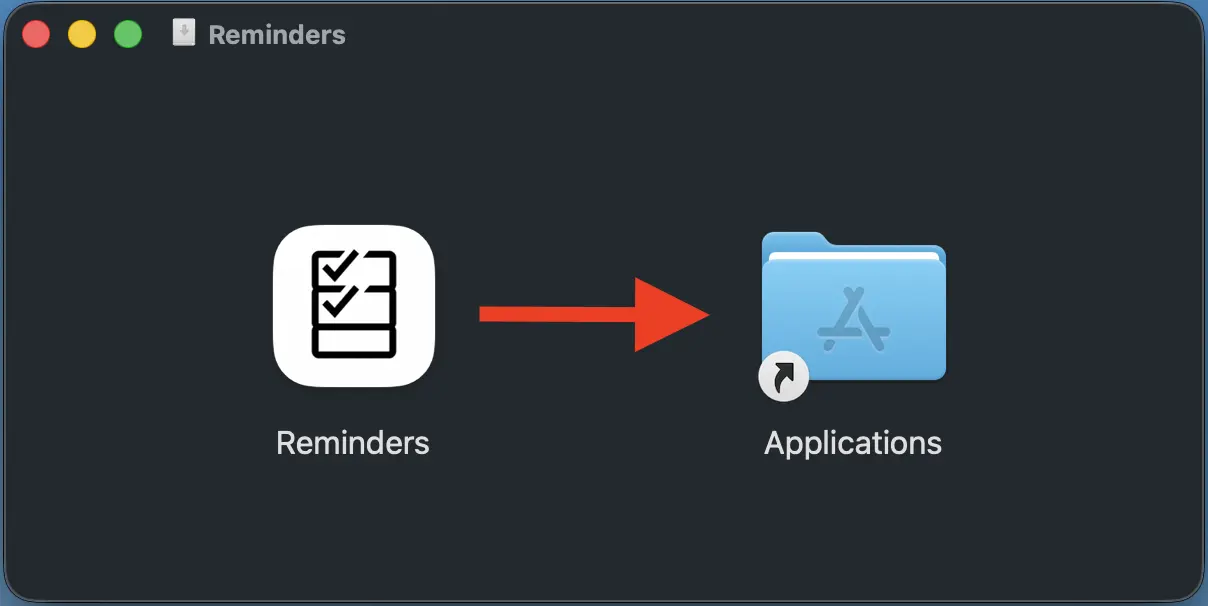
Open the DMG you downloaded, then drag Reminders into the Applications folder.
Step 3: Replace the Existing App
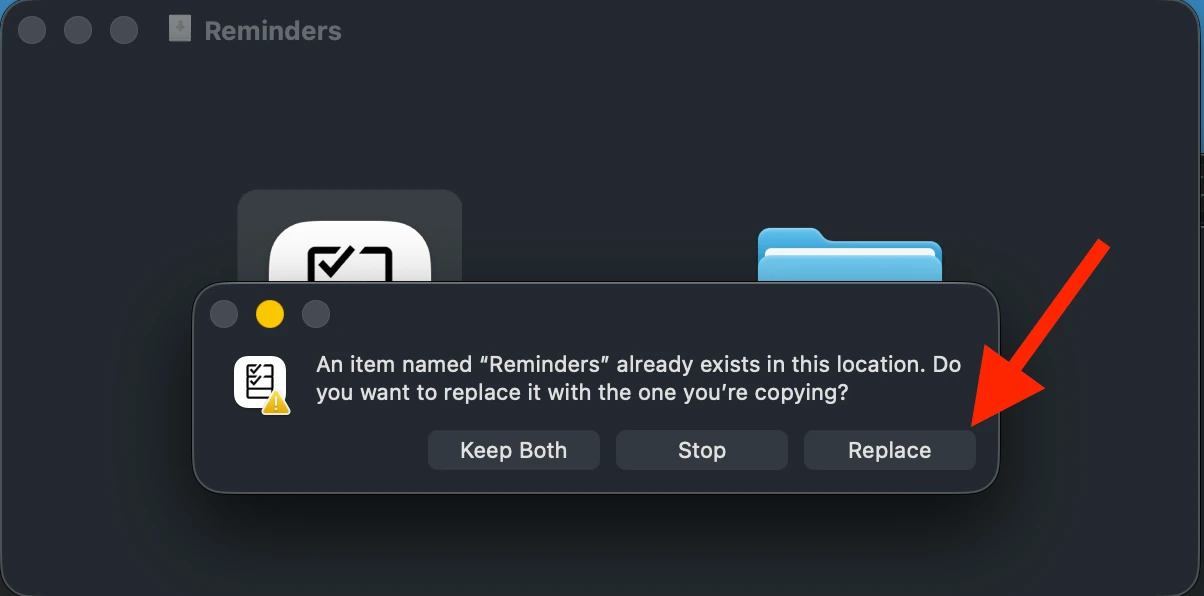
When macOS asks whether you want to replace the existing Reminders app, click Replace. This removes the current app bundle and installs the new version in its place cleanly. Once the copy finishes, launch Reminders again and use Lumous as normal.
macOS permissions note: After updating, you may need to grant Accessibility and Input Monitoring permissions again in Privacy & Security. You can click the Guide button in the app for step-by-step instructions.
Update Lumous on Windows
Step 1: Download the Windows Installer
Head to the Downloads page and download the Windows installer for Windows 10/11.
Step 2: Run the Windows Installer
Run the .exe installer you downloaded and follow the setup wizard. If Windows asks for permission to make changes, allow it. The installer uses the existing Reminders install location and replaces the previous app files with the new version.
You may also see optional setup choices like creating a desktop shortcut or launching Reminders when setup finishes. Once the installer completes, open Reminders and continue using Lumous normally.
Need Help?
For any questions, support, or feedback, feel free to contact us anytime.